Guide · 9 min read
Nano Banana Portrait Prompts (2026): 10 Copy-Paste Recipes for Identity-Safe Edits
Ten copy-paste Nano Banana portrait prompts built around reference photos — keep the same face, change one thing at a time, and stop the background from drifting.
Published November 10, 2026 · Updated November 10, 2026
Short answer: Nano Banana portrait prompts work best from a reference photo: name what must stay, change one variable, and describe the output as a photograph. The 10 recipes below each change exactly one thing — light, wardrobe, background, crop, or grade — and all 10 repeat the same identity keep-list. Written for 2026, with no version-specific flags.
Most portrait prompts start from text and ask a model to imagine a person. Nano Banana is usually used the other way around: you attach a reference photo and ask for a change to that specific person. That flips the writing task. Instead of describing a face from scratch, you spend your words on three things: what must stay, what may change, and what the finished frame should look like.
This page is ten copy-paste recipes for that workflow. Each one changes a single variable — light, wardrobe, background, crop, or grade — and explicitly locks the identity. No parameter flags, no version numbers, no settings that only exist in one host app.
How to write a Nano Banana portrait prompt
Name the reference first. Say "use the attached photo as the subject" before describing anything else. If you bury it at the end, the model treats your description as a new person and quietly replaces the face.
Write a keep-list. One short line is enough: "keep the same facial structure, hairline, skin tone, and expression." Identity drift is rarely dramatic; it shows up as a slightly different jaw or a new hairline after two or three edits.
Change one variable per run. Wardrobe plus lighting plus background in one prompt gives you no way to tell which instruction caused the change. Run them in sequence and keep the version that survived.
Describe the output as a photograph, not a style. Camera position, one light source, and a crop give a stable frame. "Cinematic, editorial, dramatic, moody" gives the model four competing grades and a face that looks airbrushed.
These are the same rules as the cinematic portrait prompts on this site, with the identity line moved to the front. For text-first generation without a reference, see the Flux portrait prompts instead.
Start with the Identity control column. It is the cell that changes the first sentence of the prompt.
| Dimension | Nano Banana (reference-first) | Flux (text-first) | Midjourney (style-first) |
|---|---|---|---|
| Starting input | 1 attached photo | Text prompt; a reference photo only if the host allows it | Text scene; reference features are optional |
| Identity control | Keep-list of 4 attributes in all 10 recipes | Identity line restated inside each recipe | Reference image plus the written scene |
| One change per run | 1 variable, then carry that output forward | Each recipe is one full scene | Refine the chosen result instead of a new scene |
| Recipe count | 10 on this page | 12 on the Flux guide | 0 on this page |
Read the "Identity control" column first: it is the only one that changes how you write the first sentence.
10 copy-paste Nano Banana portrait prompts
Attach one sharp, front-facing reference photo for each block. Paste the text as written, then change only the bracketed detail.
1. Control shot, no changes
Use the attached photo as the only subject. Keep the same facial structure,
hairline, skin tone, and expression. Reproduce the original framing and
lighting as a clean photograph, with no retouching and no background change.
Run this first. If the face is already wrong here, every later edit will be wrong in a different way.
2. Window light only
Use the attached photo as the only subject. Keep the same facial structure,
hairline, skin tone, and expression. Replace the lighting with soft daylight
from a large window at camera left; no second light source. Keep the original
wardrobe and crop. Natural skin texture, no smoothing. A real photograph.
3. Wardrobe swap
Use the attached photo as the only subject. Keep the same facial structure,
hairline, skin tone, expression, pose, and background. Change only the
clothing to a charcoal wool coat over a plain white shirt. Do not change the
light direction or the crop. Photographed, not illustrated.
4. Background relocation
Use the attached photo as the only subject. Keep the same facial structure,
hairline, skin tone, expression, and wardrobe. Move the subject to a quiet
grey studio wall, evenly lit, with the same camera height and head-and-
shoulders crop. Keep the key light coming from the same side as the original.
5. Tighter crop
Use the attached photo as the only subject. Keep the same facial structure,
hairline, skin tone, and expression. Reframe as a tight head-and-shoulders
portrait at eye level, 85mm look, with the subject slightly off centre. Do
not change the light, wardrobe, or background. No beauty retouching.
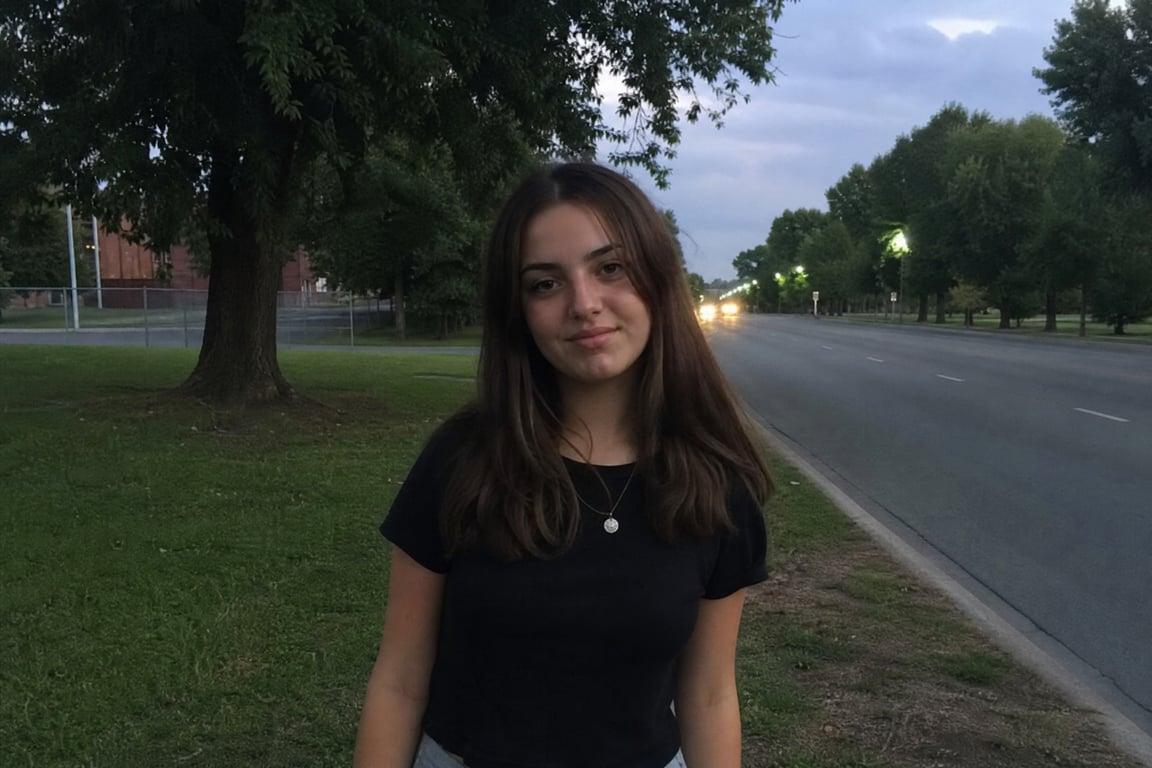
6. Overcast street
Use the attached photo as the only subject. Keep the same facial structure,
hairline, skin tone, and expression. Place the subject on a sidewalk under
overcast daylight: soft directionless light, no sun shafts. Worn denim jacket,
glance just past the camera. Fine 35mm grain, muted colour. A candid
photograph.
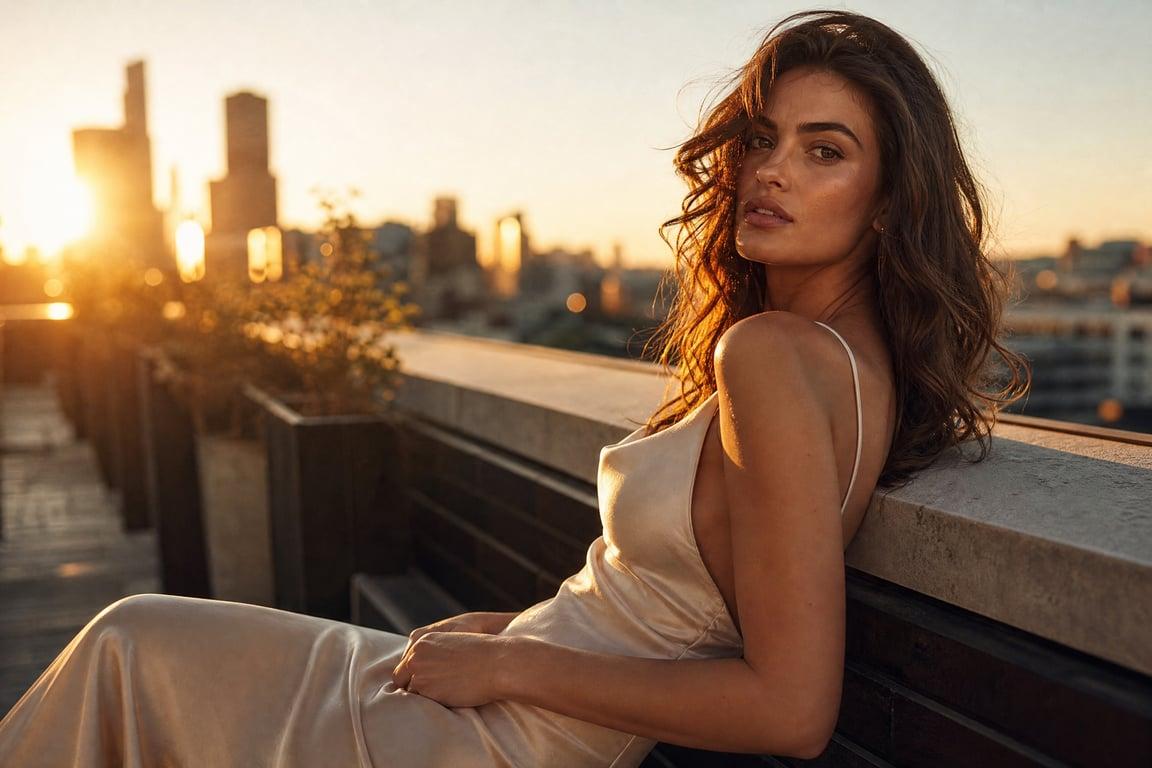
7. Golden hour, one direction
Use the attached photo as the only subject. Keep the same facial structure,
hairline, skin tone, and expression. Warm low sunlight from camera right only,
with a soft shadow on the opposite cheek. Keep the original wardrobe and crop.
Warm but not orange, no lens flare. Photographed at dusk.
8. Professional headshot
Use the attached photo as the only subject. Keep the same facial structure,
hairline, skin tone, and expression. Even soft studio light, neutral light
grey background, plain dark blazer, head-and-shoulders crop at eye level.
Keep visible skin texture. A corporate headshot, not a glamour portrait.
9. Black and white grade
Use the attached photo as the only subject. Keep the same facial structure,
hairline, skin tone, expression, wardrobe, and crop. Convert to a neutral
black-and-white photograph with full tonal range and visible texture in the
shadows. Do not add grain, vignette, or dramatic contrast.
10. Two-photo combination
Use the first attached photo for the person: keep the same facial structure,
hairline, skin tone, and expression. Use the second attached photo only for
the setting and light direction. Place the person in that setting at the same
camera height. Do not take clothing, hair, or colour grade from the second
photo. The result should read as one photograph.
When a recipe fails
The face changed. Your keep-list was too short or came after the styling. Move "use the attached photo as the only subject" to the first sentence and repeat the identity line at the end.
The whole frame changed with it. You asked for more than one variable. Go back to recipe 1 and apply the changes one at a time, carrying the best output forward as the new reference.
Text or lettering appeared in the image. Some host apps echo stray parameter flags into the frame. Delete anything that looks like a flag, a version number, or a bracketed option from the prompt text.
The general fix for drift is the same across models: separate identity from styling, and change one variable at a time. The AI portrait composition guide walks through that separation in more detail.
Frequently asked questions
What are Nano Banana portrait prompts? They are reference-first prompts: you attach one photo, state what must stay, and change one variable per run. This page has 10 recipes, each repeating the same 4-attribute identity keep-list.
How do I stop the face from changing between edits? Put 'use the attached photo as the only subject' in the first sentence and repeat the identity line at the end. Change one variable at a time and carry the best output forward as the new reference.
Do I need parameter flags or model version numbers? No. All 10 recipes on this page are plain text with no flags; aspect ratio and model choice live in the host app, not in the prompt.
Back to all guides