Guide · 7 min read
Grok Imagine Portrait Prompts: 10 Copy-Paste Prompts for Realistic AI Selfies
Grok Imagine portrait prompts for realistic AI selfies and profile photos — 10 copy-paste recipes, plus how to keep your face recognizable in xAI's image generator.
Published October 12, 2026 · Updated October 12, 2026
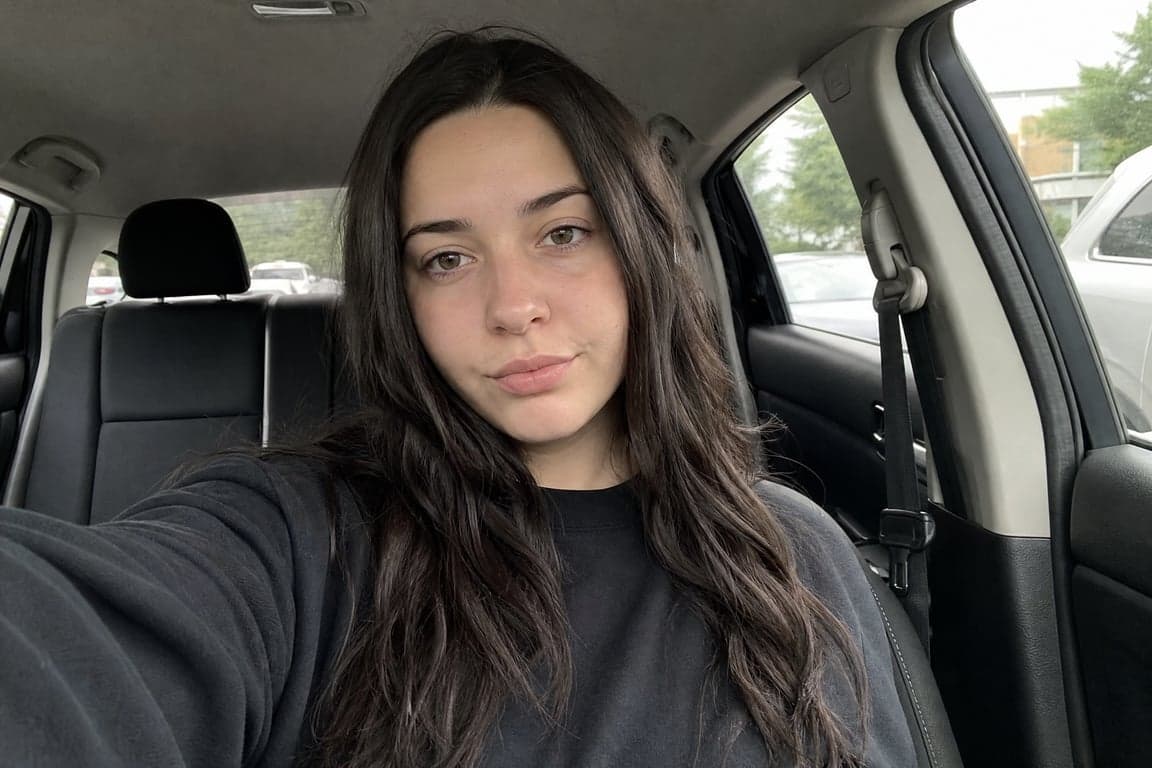
Grok Imagine is xAI's image generator inside Grok. For portraits, the useful job is a realistic selfie or a profile photo: a phone camera, a real room, a face that still reads as you. Attach a photo when the chat allows it, paste a short brief, and correct one thing at a time.
These are ten copy-paste prompts for that job. They use phone-camera language, not studio-campaign language. Each one includes the two lines that stop the face and the skin tone from being replaced.
What are Grok Imagine portrait prompts?
A Grok Imagine portrait prompt describes a photo you could have taken on a phone. Front camera, arm's length, mirror, window, car. Those words matter more than lens names. Ask for an 85mm beauty campaign and a selfie in the same sentence and you get a smoothed face, fake blur, and a pose no phone can hold.
Write it the way you would text someone holding the camera. One place. One light. What you are wearing. Where the phone is. Then the identity lines. A stack of "ultra realistic, award winning, intricate" mostly tells the model to polish you into someone else.
This is the wrong tool for a masthead or a poster title. Letters in the picture are unreliable. If the type has to be readable, use a model built for that. For a profile photo, a mirror shot, or a creator still, stay here. The crops below match the social media avatar prompts on this site: face large enough for a thumbnail, background simple enough to crop.
10 copy-paste Grok Imagine portrait prompts
Attach a clear photo first when the chat accepts one. Front-facing, both eyes visible, no sunglasses. If the first result is close, do not start over. Send one correction.
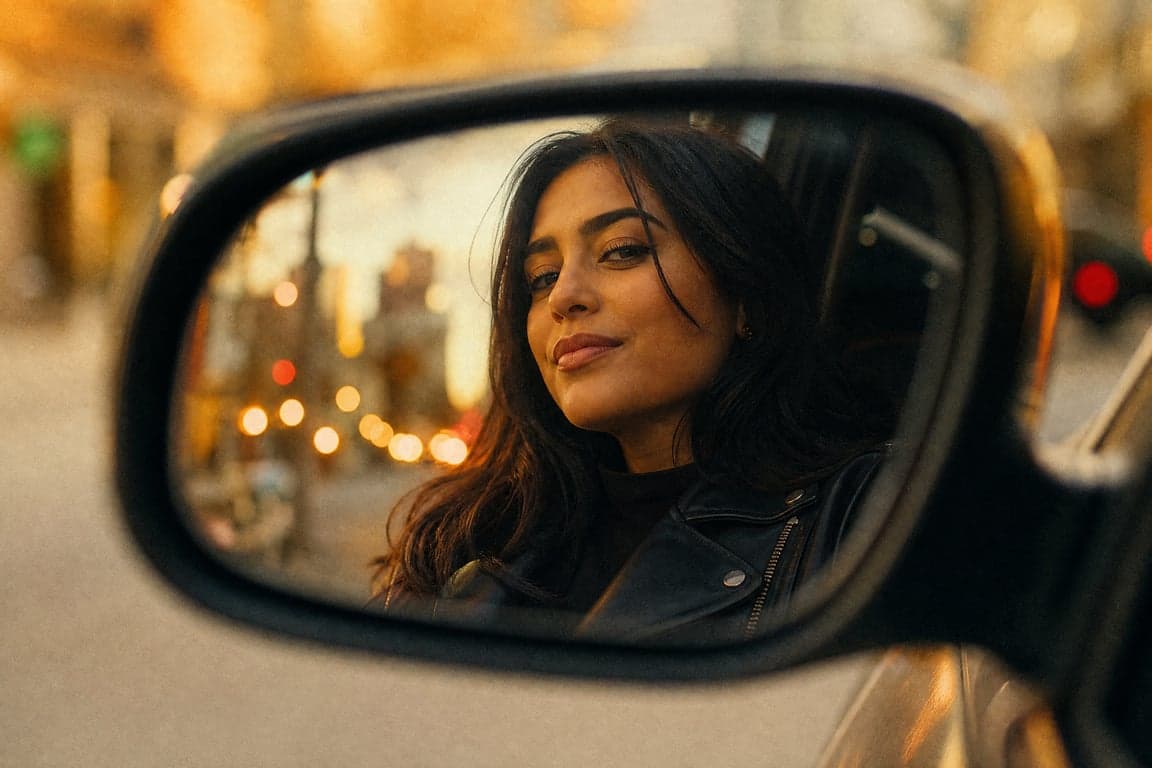
1. Car mirror, daylight
Using the attached photo, make a realistic car selfie, phone visible in
one hand. Daylight through the windshield, no flash. Casual jacket, seat
behind me, street soft through the glass. Slight wide angle, not a studio
portrait. Natural skin, no beauty filter. Keep my facial structure and
natural skin tone unchanged.
The phone is the point of the shot. The viral car mirror selfie recipe is the same idea with warmer light.
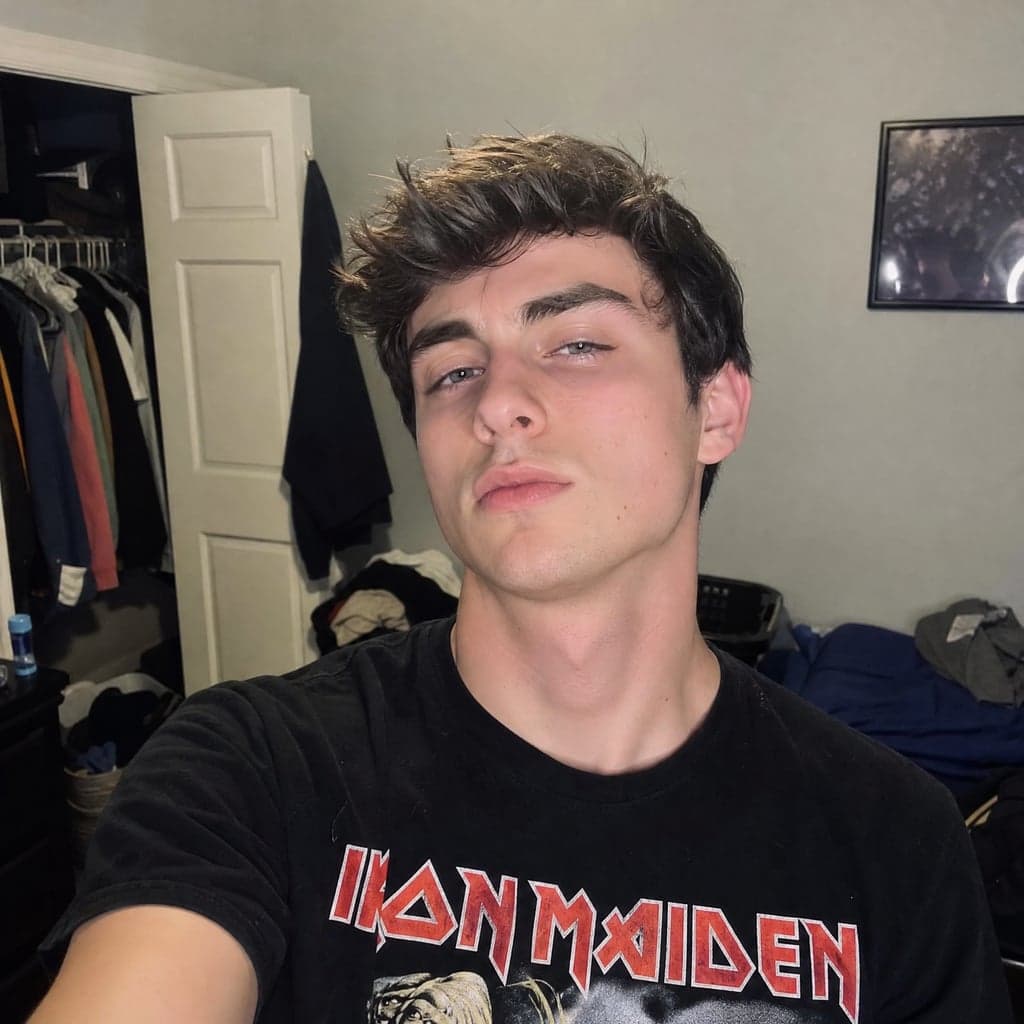
2. Window, front camera
Using the attached photo, make a front-camera selfie beside a bright
window. Phone at arm's length, face sharp, room behind me simple. Soft
daylight, no ring light, no flash. Plain t-shirt. Pores visible, no
smoothing. Keep my facial structure and natural skin tone unchanged.
A real phone photo, not a headshot.
If the face looks stretched, reply "less wide-angle" and change nothing else.
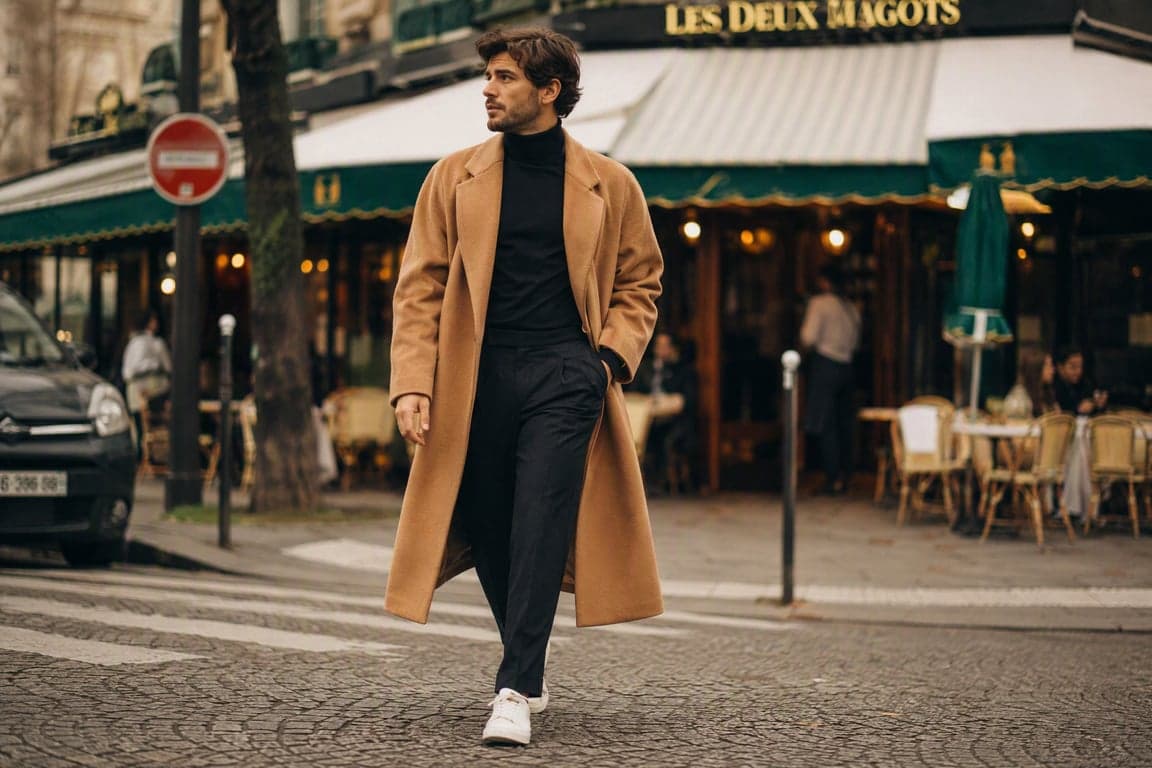
3. Street, phone at chest height
Using the attached photo, make a street photo that still looks shot on a
phone. Sidewalk, overcast day, everyday coat, city background recognizable
but not busy. Natural skin, no campaign polish. Keep my facial structure
and natural skin tone unchanged.
For a more styled walk, start from the street style editorial portrait and add the two lock lines.
4. Clean profile photo
Using the attached photo, make a simple profile photo. Head and shoulders,
off-white wall, soft window light from one side, eyes to camera, neutral
expression. No text, no border. Natural skin, no airbrushing. Keep my
facial structure and natural skin tone unchanged. Sharp enough to crop
into a circle.
"Clean" means even light and an empty wall, not a filter. The Instagram aesthetic portrait pushes color further. Use it only after this plain version still looks like you.
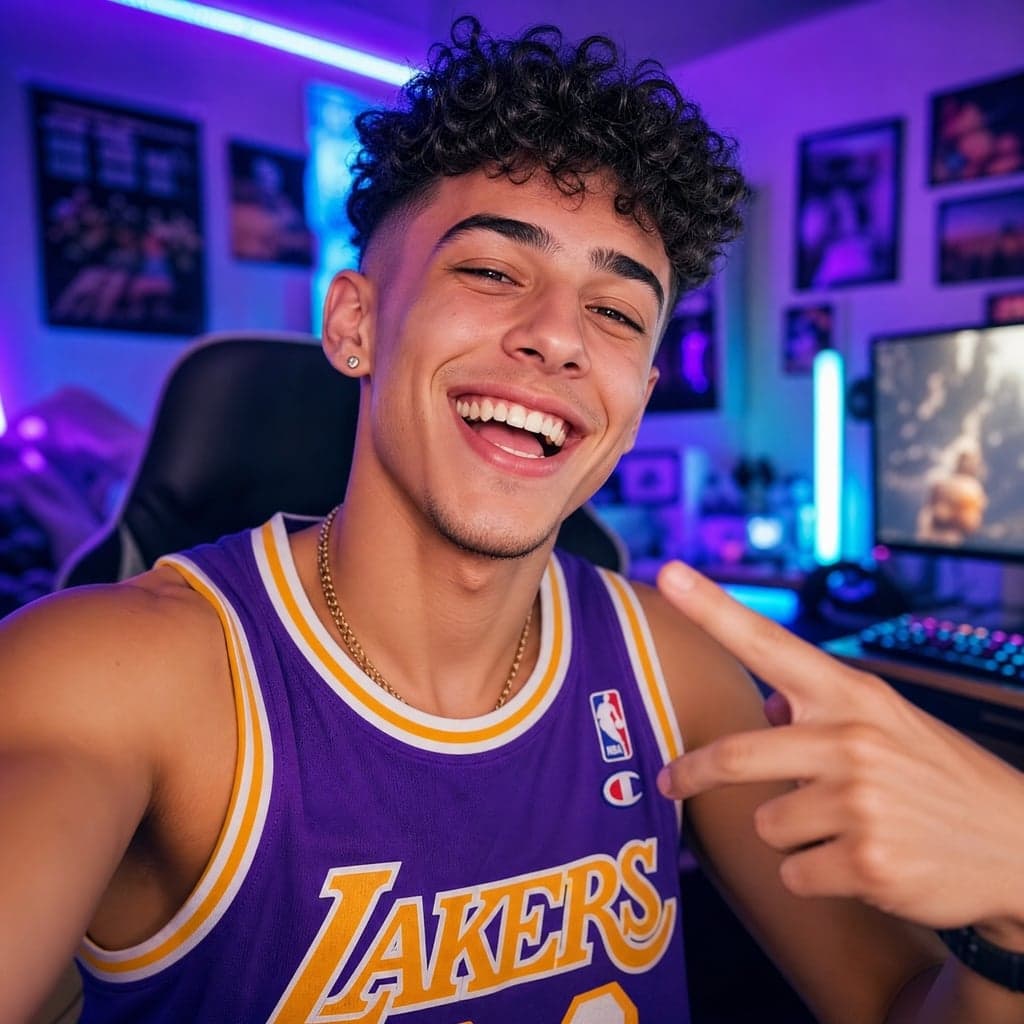
5. Talking to camera
Using the attached photo, make a still of me talking to a phone camera,
mid-sentence. A real room, one lamp or a window, not a studio. Face large,
mouth natural, not a plastered smile. Natural skin, no smoothing. Keep my
facial structure and natural skin tone unchanged.
The mouth is where these fail. The TikTok creator portrait is the more designed version of this frame.
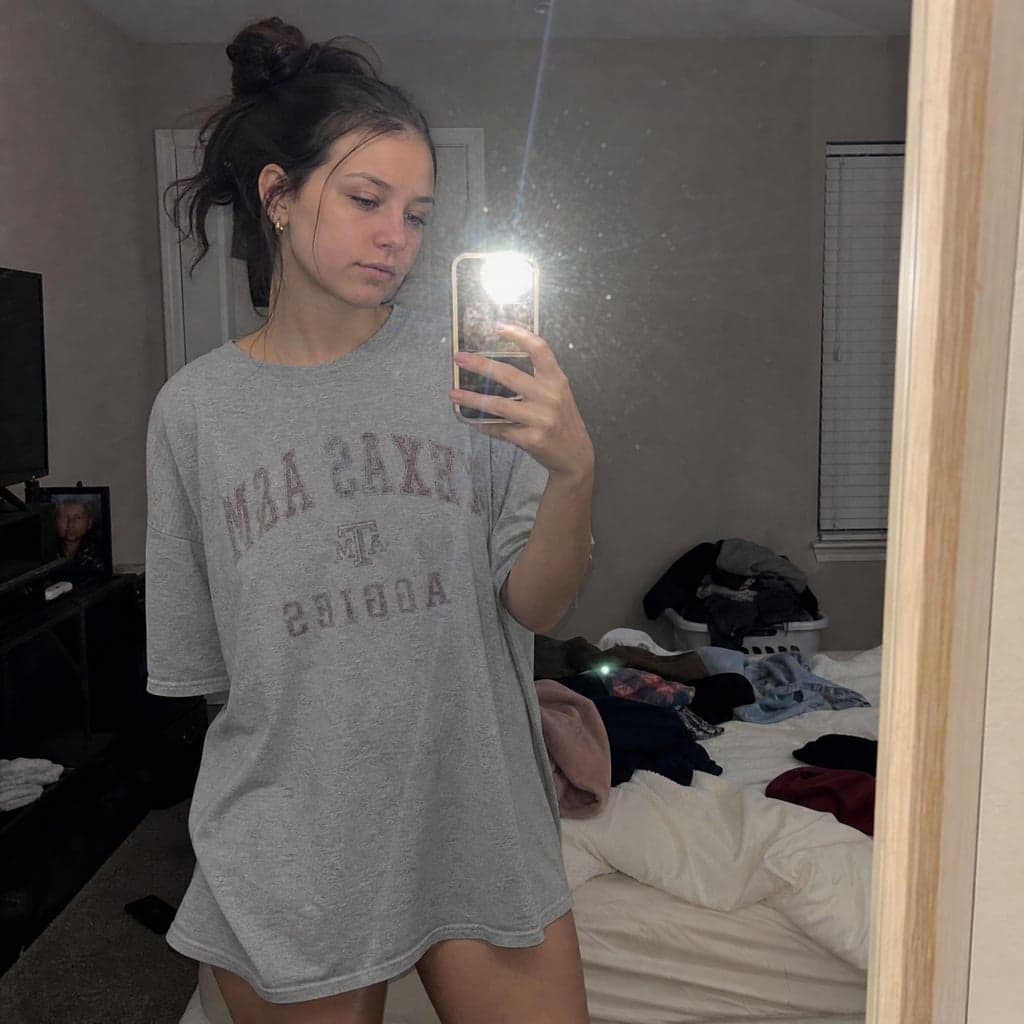
6. Bathroom mirror
Using the attached photo, make a bathroom-mirror selfie. Phone covering
my torso, not my face. Overhead room light, slight shadow under the eyes
left in. Ordinary wall. T-shirt. No retouch. Keep my facial structure and
natural skin tone unchanged.
Leave the shadow. "Brighten the face" is how this shot becomes a different person.
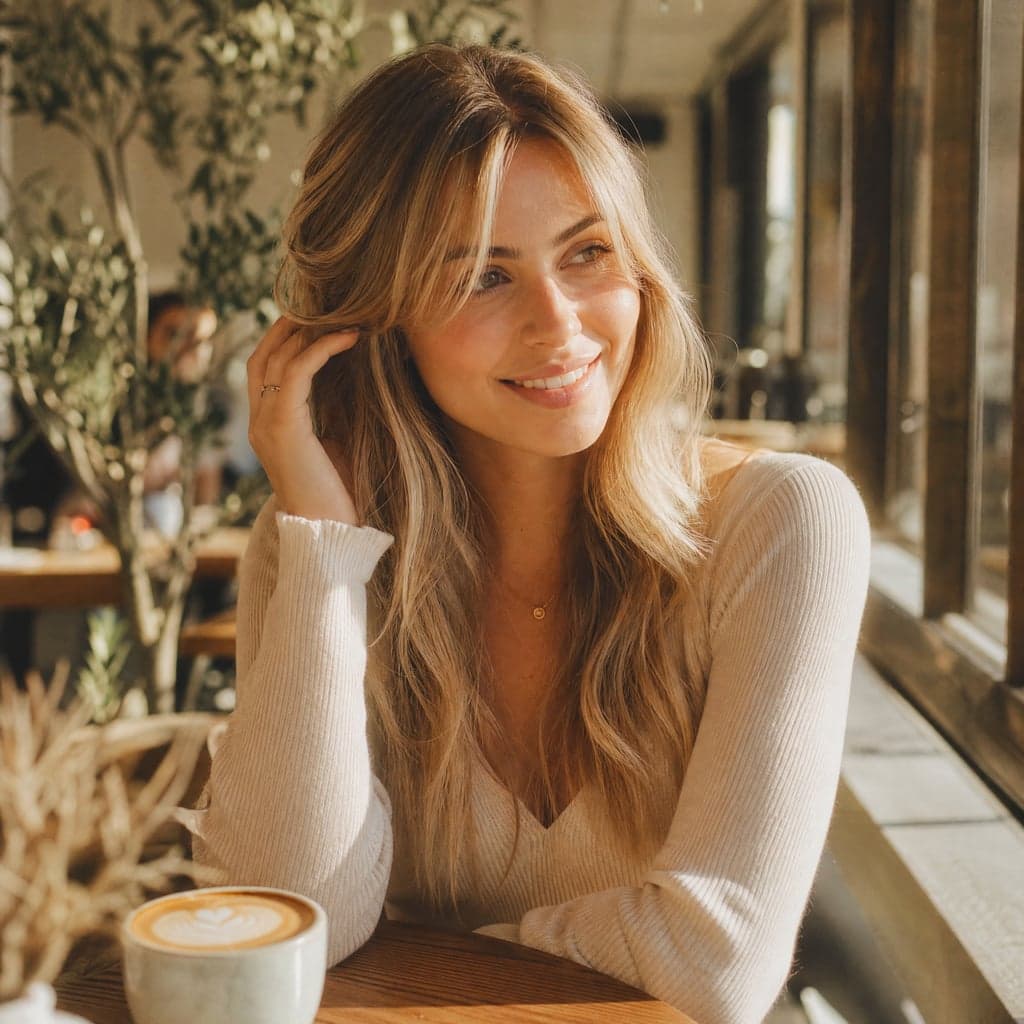
7. Cafe table
Using the attached photo, make a photo of me at a small cafe table, phone
just above the table, looking into the lens. Window daylight, coffee cup
with no logo. Background soft but not melted. Natural skin. Keep my facial
structure and natural skin tone unchanged. Shot on a phone.
A phone at table distance does not turn the room into cream. If it does, say "less background blur."
8. Late afternoon, arm's length
Using the attached photo, make an outdoor selfie at arm's length. Sun
behind me, face in open shade so it is not orange, a little warmth in the
hair only. No sunglasses. Keep my facial structure and natural skin tone
unchanged. Front phone camera.
The hair can go warm. The face should not. If the cheeks turn bronze, delete words like "golden" and repeat the skin-tone line.
9. Night, one lamp
Using the attached photo, make a nighttime indoor selfie lit by one warm
lamp just out of frame. The rest of the room is dark. No flash, no neon,
no skyline. Face readable. Keep my facial structure and natural skin tone
unchanged.
A second colored light is how a night selfie stops looking like a room you were in.
10. Account photo
Using the attached photo, make a square profile photo. Shoulders up,
centered, light gray wall, soft even daylight, closed-mouth expression.
No text, no hat. Natural skin. Keep my facial structure and natural skin
tone unchanged. The face must stay clear in a small circular crop.
Judge this at avatar size. If the eyes vanish, move closer in a follow-up. Do not add sharpness words.
How to keep your face looking like you
Grok Imagine will replace you if the prompt sounds like a casting call. Paste both lines every time.
Keep the structure. "Keep my facial structure unchanged: eyes, nose, jaw, and the space between them. Do not give me a different face." "Looks like me" is a vibe. The model will treat it that way.
Keep the color. "Keep my natural skin tone unchanged. Do not lighten, darken, bronze, smooth, or filter the skin." Selfies drift here because "nice lighting" gets read as a beauty pass. Your features can survive while your complexion does not.
Both lines, every prompt. They only work if a photo of you is attached. Text alone invents a person. If the chat cannot take an image, use these recipes to design the shot, not to claim the face.
When a result is close, stay in the thread: "same photo, same face, less smoothing." A full rewrite throws away the parts that already matched.
Grok Imagine-specific tips
- Talk like a phone photo. "Front camera, arm's length, window, no flash." Studio phrases pull the face toward a campaign model.
- Ban the polish words. Flawless, porcelain, airbrushed, and perfect skin are instructions to remove you.
- One change per reply. Keep the face lines. Change the room, or the shirt, or the crop.
- No type in the picture. A username or caption will misspell and shove the face aside. Add text later, outside the generator.
- Upload the boring photo. Even light, both eyes, no sunglasses. A dramatic reference gives the model less face to hold.
FAQ
Can Grok Imagine make a selfie that still looks like me?
Yes, when you attach a clear photo and include both lock lines: facial structure unchanged, and natural skin tone unchanged. Without the photo, it casts someone new. Without the skin-tone line, it often keeps a rough likeness and changes your color.
Why do the selfies look smoothed?
The prompt asked for it, even indirectly. Perfect, flawless, professional, and high-end read as retouching. Take them out. Ask for visible skin texture and no beauty filter. If the image is already waxy, reply with only that correction.
Can I put my name or a caption in the image?
Not reliably. Generate the portrait with an empty background, then add type in an editor. For posters and covers where the words are part of the picture, use a model built to render text.
Back to all guides